

 English Malay
  China
China  Türkiye
  France
  Spain
Spain  Vietnamese
  Thailand
  India
India  Русский
  Japan
Japan  Arabic
  Mexico
  Peru
Peru  Argentina
  Korea
Korea  Eng-Canada
  Cambodia
  Philippines
  Bangladesh
  Hong Kong
  Australia
  Singapore
  Colombia
  Iran
Iran You’ve just found an MT4 trading strategy (or an EA Bot) that’s advertised as “unbeatable”? Are you eager to deposit real money and start making profits immediately?
Depositing real money into an unverified strategy is the fastest way to burn your account. Instead, use the Backtest on MT4 feature — a time machine that allows you to check whether that strategy actually made money in the past.
Below is a detailed step-by-step guide to performing backtesting like a pro trader.
1. What is Backtest on MT4 and why is it necessary?
Backtest (historical data testing) is the process of running a trading strategy or Robot (EA) on historical price data (1 year, 5 years, or even 10 years back).

Core benefits:
- Verify effectiveness: Identify the Profit Factor and Win Rate.
- Measure risk (most important): Determine the maximum account drawdown (Max Drawdown). Note: Proprietary firms like WeMasterTrade have very strict drawdown rules. If your Backtest shows excessive drawdown, you must adjust the strategy immediately.
- Save money: Losses in Backtesting are “virtual” — no real money is lost.
2. Preparing clean historical data (Data History)
Backtest results are only accurate if the input data is accurate. MT4’s default data is often missing candles or contains inaccuracies.
How to download high-quality data:
- Open MT4, go to Tools → History Center (or press F2).
- Select the currency pair you want to test (e.g., XAUUSD) and the timeframe.
- Click Download.
- Wait for the data to finish downloading (this may take a few minutes). When you see “Database: … records” increasing, the download is successful.
3. How to use the Strategy Tester
This is the main workspace for performing a Backtest on MT4.
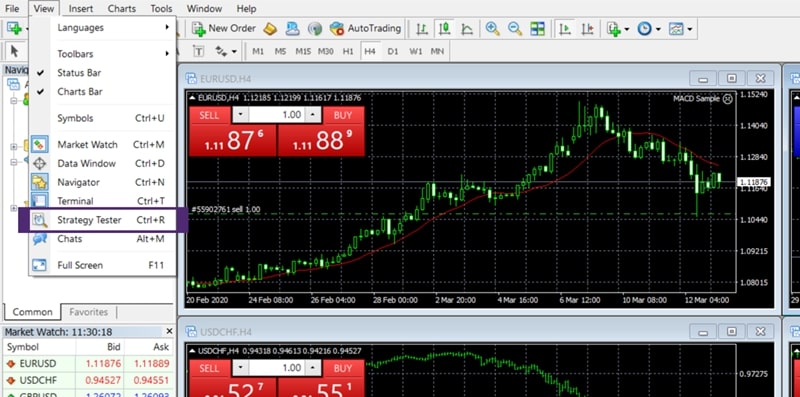
Step 1: Open the Strategy Tester
- From the Menu bar, select View → Strategy Tester
- Or press Ctrl + R
Step 2: Parameter setup
A control panel will appear at the bottom. Configure it as follows:
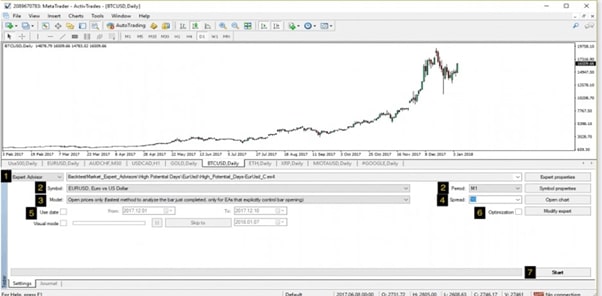
- Expert Advisor: Select the EA or Indicator you want to test. (Don’t have one yet? Review the article [What is an Expert Advisor and how to install it] to download one.)
- Symbol: Select the currency pair (e.g., EURUSD).
- Model:
- Every tick (Recommended): Most accurate but slowest.
- Control points: Faster but less accurate (for preliminary testing only).
- Use date: Check this box to select a testing period (e.g., from 01.01.2023 to today).
- Visual mode: If enabled, the chart will play like a movie showing trade entries. (Very useful for seeing how the [Top 10 Technical Indicators] behave on the chart.)
- Period: Select the timeframe (H1, H4, D1, etc.).
- Expert properties: Click here to set the initial deposit and technical parameters (lot size, SL, TP).
Step 3: Click “Start”
MT4 will begin processing the data. Wait until the green progress bar reaches the end.
4. How to read the result report (Report Analysis)
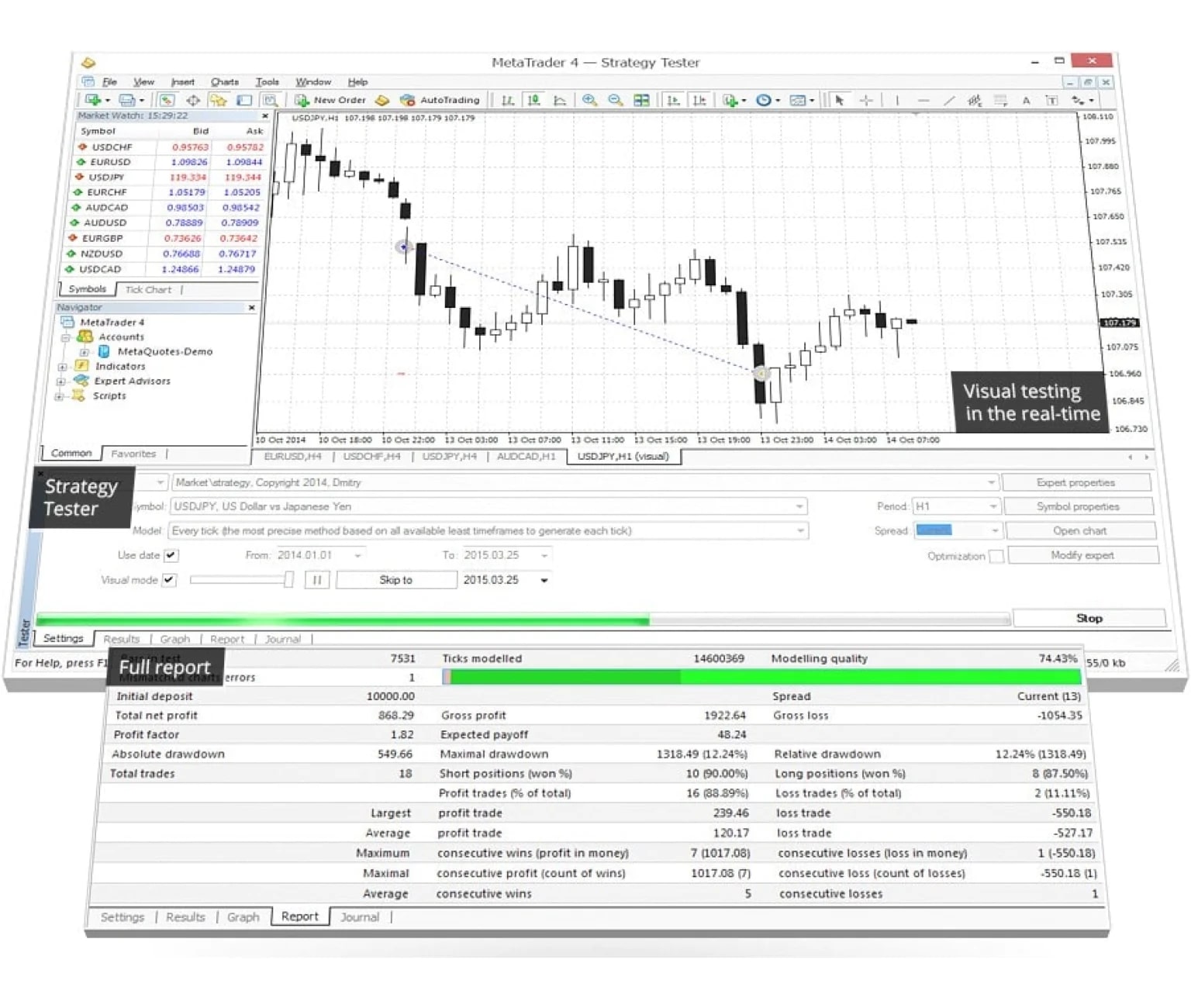
Once the test is complete, switch to the Report and Graph tabs. This section determines whether your MT4 trading strategy is actually usable.
Pay close attention to the following three critical metrics:
- Total Net Profit: The net profit after losses. This value must be positive (+).
- Profit Factor: = Total Profit / Total Loss
- Below 1.0: Losing strategy → Discard or modify the [MQL4] code.
- Above 1.5: Good.
- Above 2.0: Excellent (meets proprietary firm standards).
- Maximal Drawdown: This is the metric WeMasterTrade cares about the most.
- It shows the maximum percentage loss the account experienced historically.
- Example: If the drawdown is 30%, the strategy is too risky for prop firm challenges (which usually allow only 5–10%). You must reduce the lot size.
5. Optimization – A double-edged sword
MT4 offers an Optimization mode (checkbox in the Strategy Tester). It helps find the best parameter set (e.g., is the MA 50 better than the MA 100?).
- Pros: Finds the highest possible profit.
- Cons: High risk of over-optimization — parameters that worked perfectly in random historical data but fail completely in the future.
- Advice: Choose parameter sets that produce stable profits over many years, not those with huge spikes one year and losses the next.
6. Is Backtest on MT4 or MT5 better?
Although this guide focuses on MT4 due to its popularity, WeMasterTrade recommends using MT5 for backtesting because:
- More accurate real tick data
- Supports multi-currency backtesting
- Much faster processing speed
(If you’re not familiar with placing trades on these platforms, review [How to place Buy/Sell orders and set Stop Loss] before running tests.)
Mastering the skill of Backtest on MT4 gives you the confidence of a professional trader — not the anxiety of a gambler.
If your Backtest results show:
- A steadily rising equity curve
- Low drawdown (below 10%)
- Profit Factor greater than 1.5
Then congratulations — you’re holding a gold mine. Don’t waste it with a tiny account.