

 English Malay
  China
China  Türkiye
  France
  Spain
Spain  Vietnamese
  Thailand
  India
India  Русский
  Japan
Japan  Arabic
  Mexico
  Peru
Peru  Argentina
  Korea
Korea  Eng-Canada
  Cambodia
  Philippines
  Bangladesh
  Hong Kong
  Australia
  Singapore
  Colombia
  Iran
Iran Mastering how to place MT5 orders (MetaTrader 5) is a crucial skill for any trader entering the Forex or CFD market. Whether you trade on your phone or computer, a single mistake or delay can lead to slippage or missed opportunities for huge profits.
At Wemastertrade, we understand that the MT5 platform has more complex features than its predecessor, MT4. This article will be a comprehensive guide, instructing you step-by-step on how to execute market orders, the 6 types of pending orders, and how to set up Stop Loss/Take Profit accurately to manage risk effectively.
Types of Orders in MetaTrader 5 You Need to Know
Before going into the details, you need to understand the nature of the order types that the MT5 software provides. Unlike MT4, which only has 4 types of pending orders, MT5 offers up to 6 types of pending orders plus market orders.
Market Execution Order
This is an order that is executed immediately at the current market price (Bid or Ask price). When you press the “Buy” or “Sell” button, the order will be executed instantly.
Pending Order
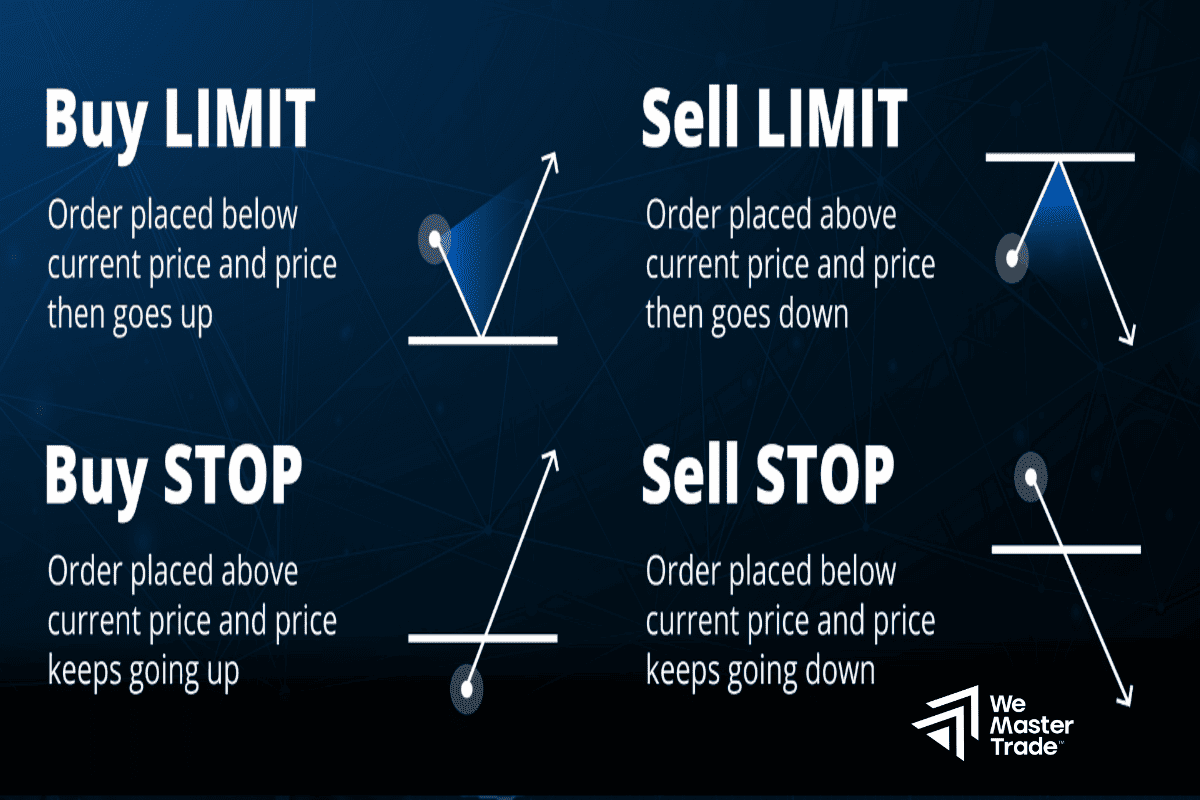
A pending order is an instruction to the broker to buy or sell at a specified price in the future. This order is only triggered when the market price reaches the point you set. MT5 has the following types of pending orders:
- Buy Limit: Place a buy order at a price lower than the current price (expecting the price to fall and then bounce up).
- Sell Limit: Place a sell order at a price higher than the current price (expecting the price to rise and then reverse downwards).
- Buy Stop: Place a buy order at a price higher than the current price (expecting the price to break through resistance and continue to rise).
- Sell Stop: Place a sell order at a price lower than the current price (expecting the price to break support and continue falling).
- Buy Stop Limit: A combination of Buy Stop and Buy Limit (only available on MT5).
- Sell Stop Limit: A combination of Sell Stop and Sell Limit (only available on MT5).
How to place MT5 orders on a computer (PC/Laptop)
The Desktop interface provides a comprehensive view and a full range of technical analysis tools. Below is the standard procedure from experts at Wemastertrade.
Step 1: Open the order placement window (New Order)
You can open the order placement dialog in 3 ways:
- Press the F9 shortcut key on your keyboard.
- Right-click on the chart, select Trading > New Order.
- Double-click on the currency pair you want to trade in the Market Watch panel.
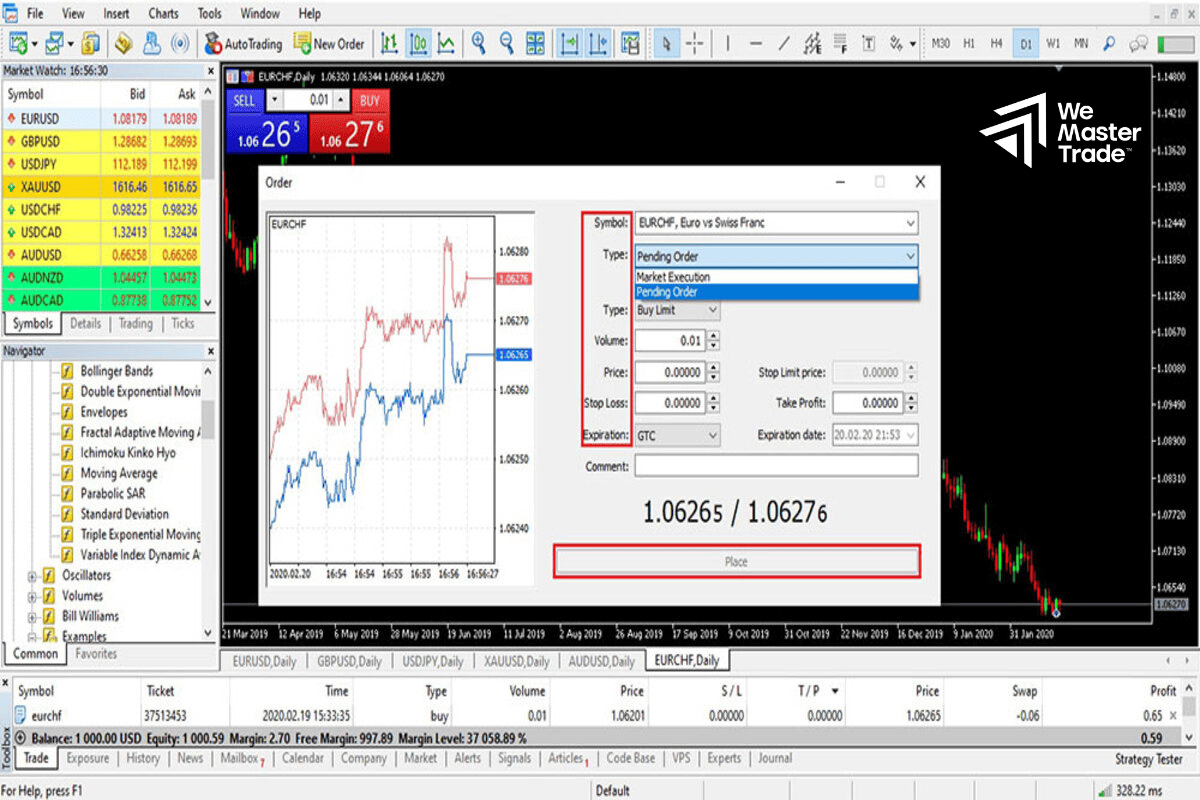
Step 2: Setting Order Parameters
A parameter table will appear; you need to fill in the following accurately:
- Symbol: The currency pair or commodity you want to trade.
- Type: Select Market Execution or Pending Order.
- Lot Volume: Determine the position size (e.g., 0.01, 0.1, 1.0). This is an important step for capital management.
- Stop Loss & Take Profit: Enter the price at which you want to exit the order to protect your account or realize profit.
Step 3: Executing the Order
- If you choose Market Execution: Click the Sell by Market or Buy by Market button.
- If you choose Pending Order: Enter your desired price in the Price field, then click Place.
Tip from Wemastertrade: Always enable One Click Trading by pressing Alt + T to quickly enter orders when the market is highly volatile.
How to Place MT5 Orders on a Mobile Phone (iPhone/Android)
Most traders today trade on mobile devices due to their flexibility. The MetaTrader 5 mobile interface is optimized for one-handed operation.
Step 1: Select the Currency Pair
On the Quotes screen, select the currency pair you want to trade, then select Trade or New Order.
Step 2: Select the Order Type
At the top of the screen, you will see the words Market Execution. If you want to place a pending order, tap on it and select the corresponding order type (Buy Limit, Sell Stop, etc.).
Step 3: Enter the Volume and Price
- Volume: Use the number in the middle of the screen (e.g., 0.10) to adjust the lot size.
- Stop Loss & Take Profit: Fill in the corresponding boxes (usually the Stop Loss box is on the left with a red line, and the Take Profit box is on the right with a blue line).
- Price: If it’s a pending order, you need to enter the price to trigger the order.
Step 4: Completion
Press the Sell by Market or Buy by Market button. If it’s a pending order, this button will display as Place.
Detailed Explanation: Buy Stop Limit and Sell Stop Limit
These are two advanced order types that differentiate MT5, often confusing for beginners. Wemastertrade will explain them simply as follows:
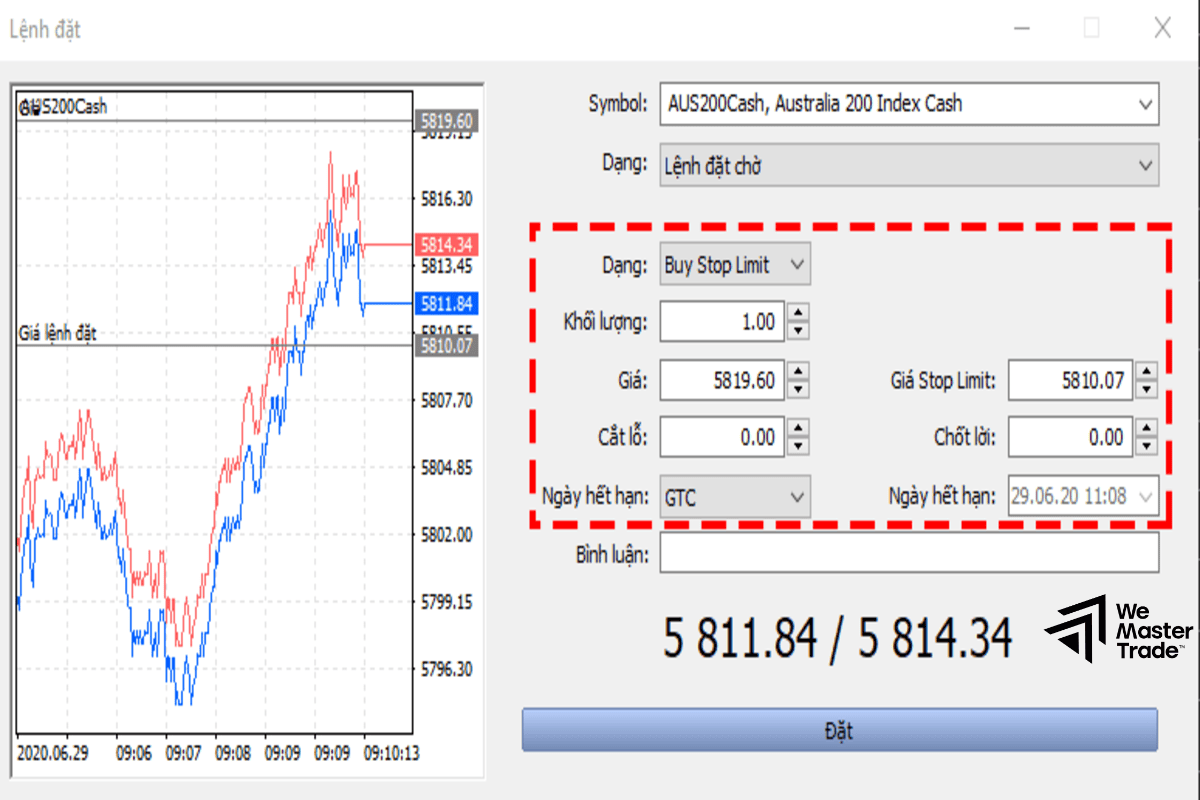
What is a Buy Stop Limit?
Imagine you want to buy when the price breaks through resistance (Buy Stop), but you’re afraid of slipping too far.
- Price (Stop Price): When the market price reaches this point, a Buy Limit order will be triggered.
- Stop Limit Price: This is the price at which you actually want the Buy Limit order to be executed.
Example: The current price is 1.1000. You set a Buy Stop Limit with Price = 1.1050 and Stop Limit Price = 1.1040. -> When the price rises to 1.1050, the system will automatically place a pending buy order (Buy Limit) at 1.1040. The order will only be executed if the price reverses slightly back to 1.1040.
What is a Sell Stop Limit?
The opposite of a Buy Stop Limit. You use it when you want to sell when the price breaks through resistance (Sell Stop) but want a better price. When the price reaches the Price level, a Sell Limit order will be triggered at the Stop Limit Price.
How to Modify and Close Orders
Knowing how to enter a trade isn’t enough; you also need to know how to exit the market safely.
How to Move Stop Loss and Take Profit (Modifying Orders)
While a trade is running, you may want to move the Stop Loss to break even or widen the Take Profit:
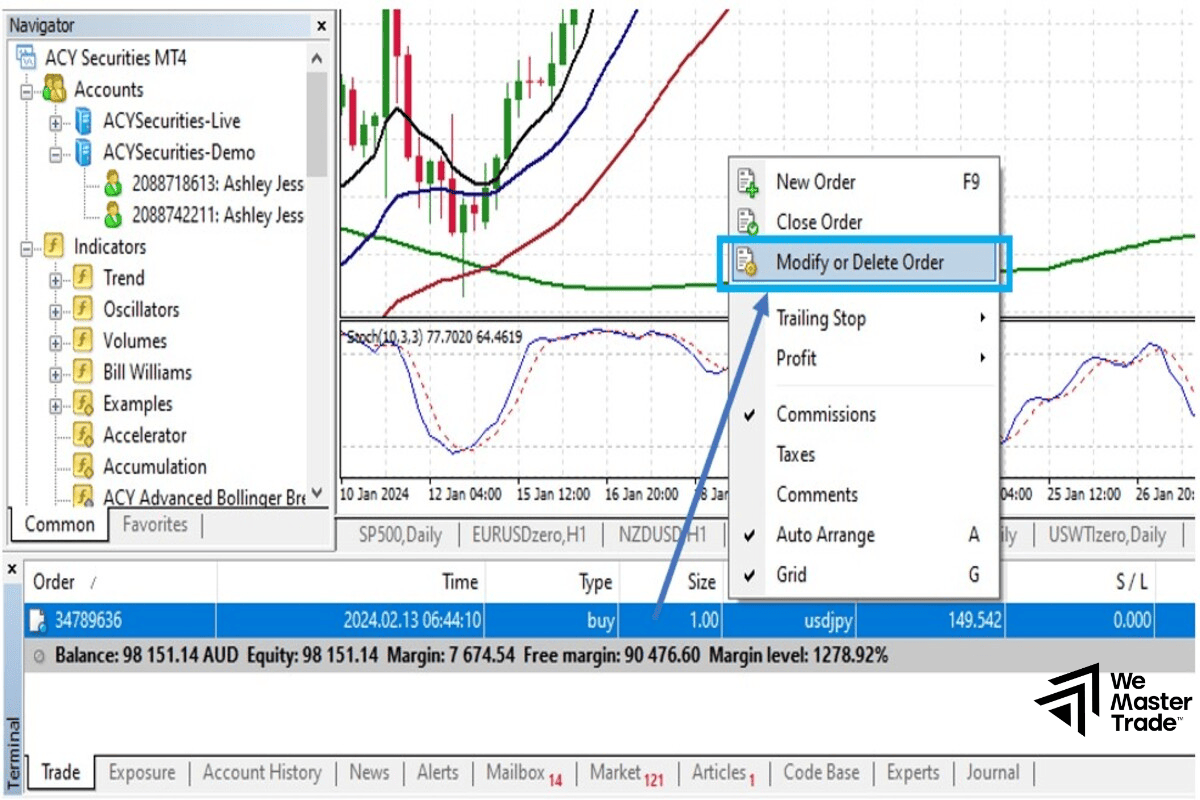
- On PC: Right-click on the running trade in the Trade tab -> Select Modify or Delete.
- On Mobile: Swipe the trade to the left (iOS) or press and hold the trade (Android) -> Select the pen icon (Modify Status).
How to Partially Close a Trade
This is a very effective partial profit-taking technique recommended by Wemastertrade:
- Open the order closing window as usual.
- Before pressing the “Close” button, adjust the volume to be smaller than the original volume.
- Example: You are buying 1.0 Lot. You change the Volume to 0.5 and press Close.
- Result: You have taken profit on 0.5 Lot, while the remaining 0.5 Lot continues to trade in the market.
Common Errors When Placing Orders on MT5 (FAQs)
During community support, Wemastertrade has received several common questions:
Why are the Buy/Sell buttons grayed out and unresponsive?
- Reason 1: You haven’t logged in with the correct Master password or are using an Investor password (view only).
- Reason 2: The Lot size you entered is invalid (too small or too large compared to the Broker’s regulations).
- Reason 3: Insufficient balance for margin.
What is the “Off quotes” error? This error occurs when the market fluctuates too quickly, and the price you see on the screen is outdated. Try resetting the order or accepting the price deviation in the settings.
Why isn’t my pending order being filled even though the price has reached it? Remember the Bid and Ask price rules:
- Buy Limit orders are filled at the Ask price.
- Sell Limit order was executed at the Bid price. The default candlestick chart usually only shows the Bid price, so sometimes you see the candle touching the price but the Buy order hasn’t been executed due to the Spread (the difference in fees).
See also:
Conclusion
Mastering how to place MT5 orders is the first step towards becoming a professional trader. Understanding the mechanics of each order type, especially complex pending orders, and mastering capital management techniques like Stop Loss/Take Profit will help you control the game.
Don’t forget to practice thoroughly on a Demo account before trading with real money. If you need more advanced trading strategies or support tools on MT5, continue following other in-depth articles from Wemastertrade.