

 English Malay
  China
China  Türkiye
  France
  Spain
Spain  Vietnamese
  Thailand
  India
India  Русский
  Japan
Japan  Arabic
  Mexico
  Peru
Peru  Argentina
  Korea
Korea  Eng-Canada
  Cambodia
  Philippines
  Bangladesh
  Hong Kong
  Australia
  Singapore
  Colombia
  Iran
Iran 1. Choose the right chart type (Chart Mode)
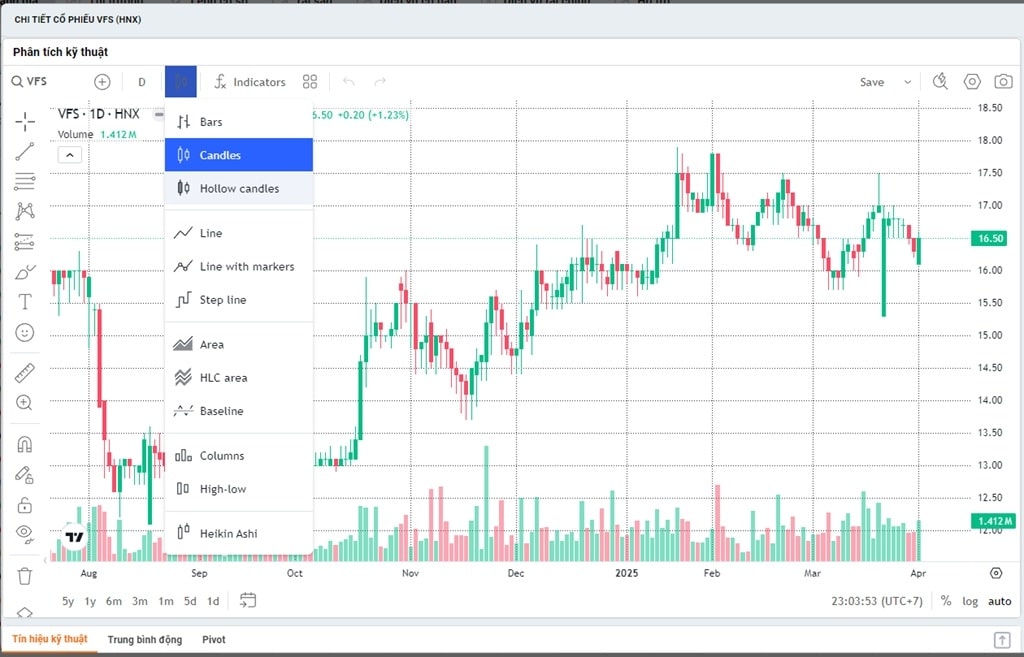
- Bar Chart (Bar – Alt+1): Quite difficult to read for beginners.
- Line Chart (Line – Alt+3): Only connects closing prices, suitable for seeing the general trend but lacks detail.
- Candlesticks (Japanese Candlesticks – Alt+2): This is the “holy grail” of every professional trader.
2. Guide to “Cleaning Up” and Customizing Charts in MT4
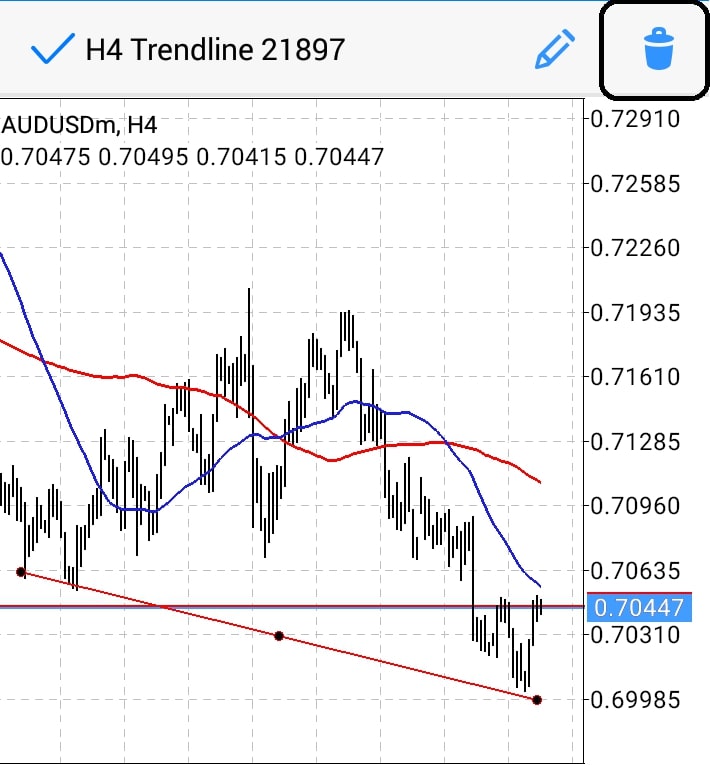
Step 1: Open the Properties panel
Step 2: Turn off distracting elements (Common Tab)
- Switch to the Common tab.
- Uncheck the Show Grid box (or press Ctrl + G outside): Turn off the grid for a cleaner chart.
- Check the box “Show period separators“: This displays vertical lines separating trading days/weeks (very important to know when the Asian/European/American session starts).
- Check the box “Show Ask line“: This displays the buy price line (helps you see how the spread expands).
Step 3: Redesign the colors (Colors Tab)
- Suggested color scheme: “Black on White” (White background – Black text): Easy on the eyes, similar to TradingView.
- Background: White.
- Foreground: Black (Black – the color of the numbers on the margin).
- Bar Up: Green or Black (Bullish candle border).
- Bar Down: Red or Black (Bearish candle border).
- Bull Candle: Green or White (Bullish candle body).
- Bear Candle: Red (Bearish candle body).
3. Essential Chart Navigation Tools You Must Know
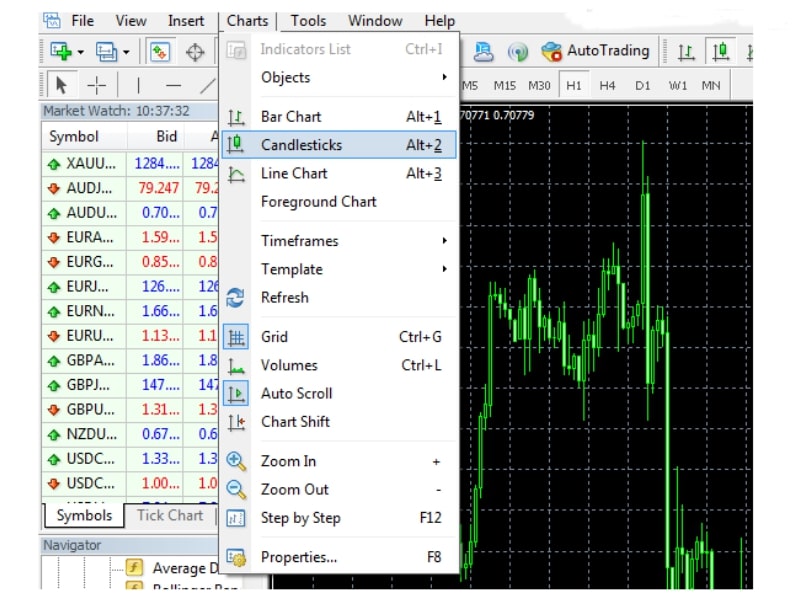
- Auto Scroll:
Green arrow icon. When enabled, the chart will automatically jump to the current candle whenever a new price appears.- Tip: Turn this button off when you want to scroll back to the past to [Backtest trading strategies].
- Chart Shift:
Red arrow icon. Creates a space on the right side of the screen.- Effect:
Prevents candles from being pressed against the right edge, providing space to draw future projections or clearly see [Technical Indicators].
- Effect:
- Timeframes: From M1 (1 minute) to MN (1 month).
- WeMasterTrade Mindset:
Always analyze multiple timeframes. Look for trends on H4/D1, find entry points on M15/H1.
- WeMasterTrade Mindset:
4. Save Template – Do it once, use it forever
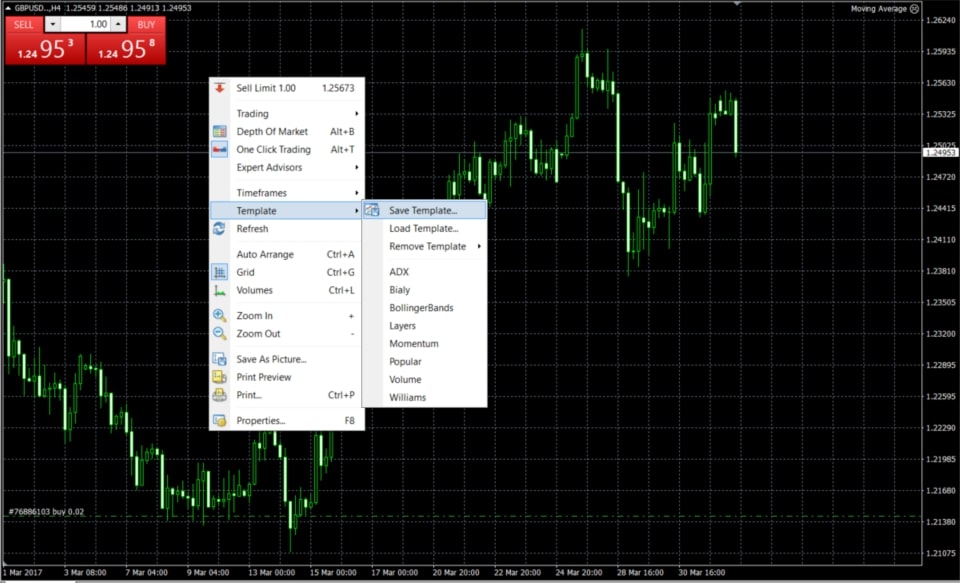
You cannot manually adjust the colors for every single currency pair every time you open a new chart. Use the Template feature:
-
After adjusting colors and adding your desired indicators.
-
Right-click on the chart → Template → Save Template.
-
Name it (Example: “WMT_Clean”).
-
Next time you open a new pair (e.g., EURUSD), just Right-click → Template → Select “WMT_Clean”. All setups will appear in 1 second.
5. Arrange Multiple Frames (Tile Windows)
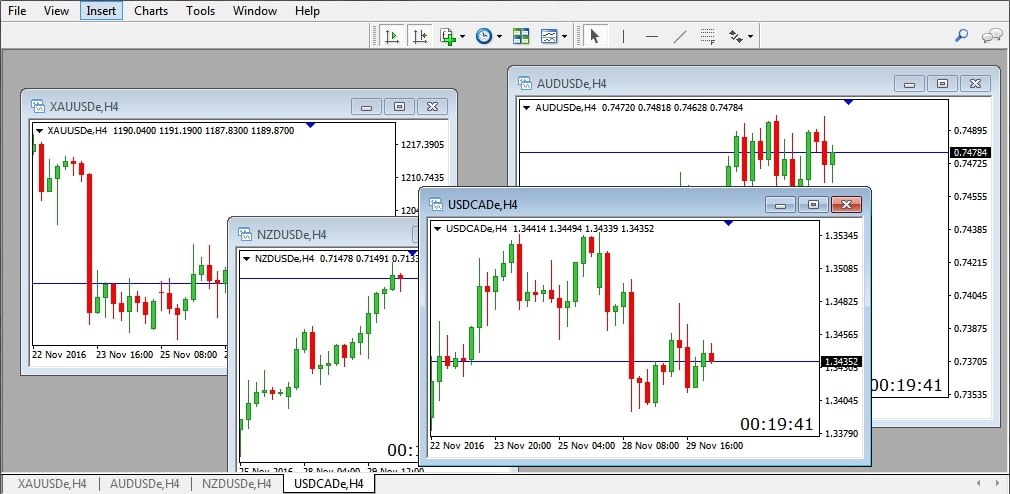
Fund traders often need to observe many currency pairs at once.
-
Open 4 charts of 4 different currency pairs.
-
On the Menu bar, select Window → Tile Windows (or press Alt + R).
-
MT4 will automatically divide the screen into 4 equal squares, helping you oversee the entire market.
Mastering the MT4 chart and knowing how to customize the chart in MT4 not only helps reduce eye strain but also demonstrates your seriousness toward the Trading profession. A professional workspace leads to wise entry decisions.
Related articles to read for a complete setup: